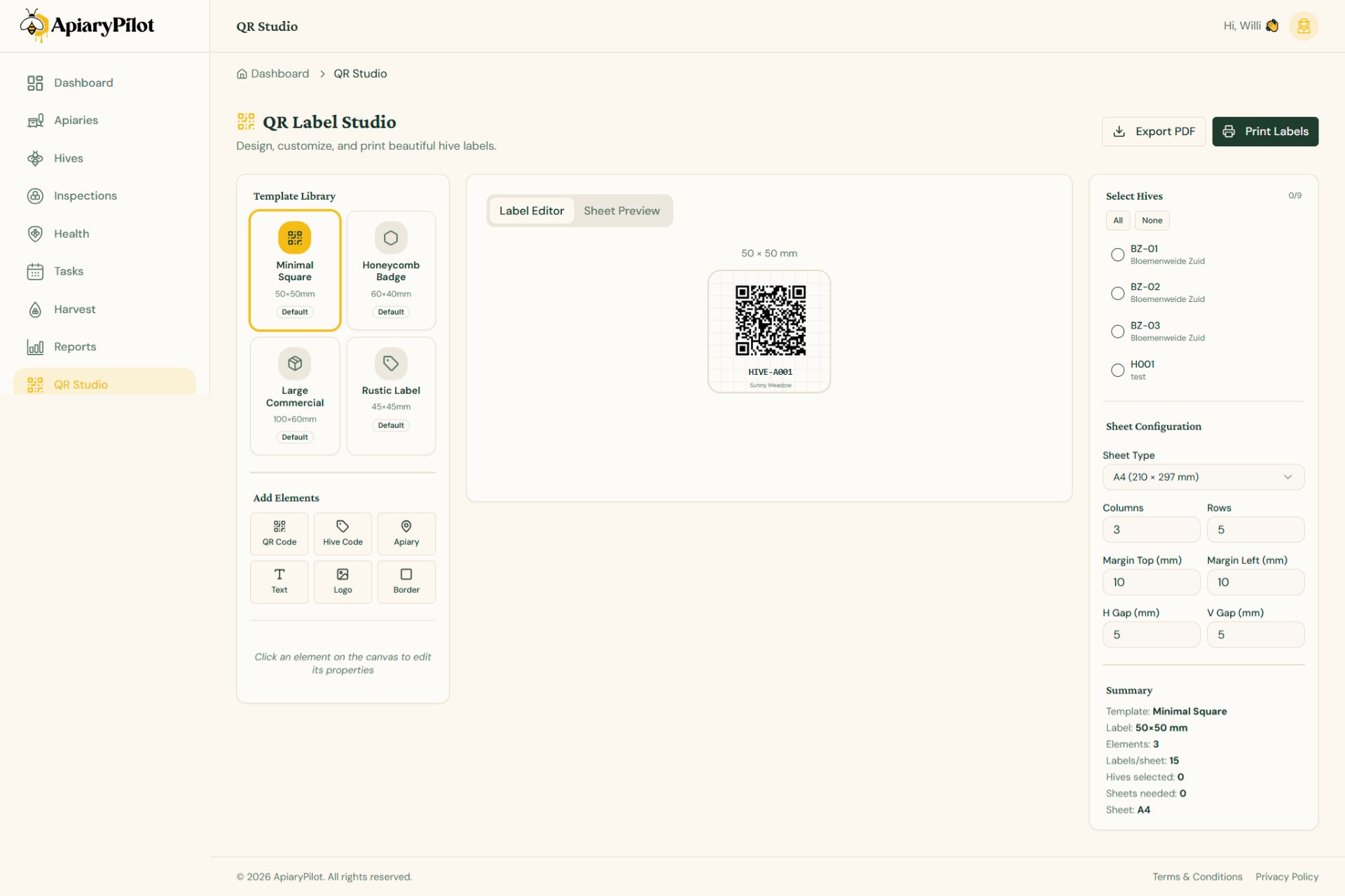
Designing Hive Labels
QR Studio lets you create professional labels with QR codes for your hives. Scan them in the field for instant access to hive data.
Getting Started
- Navigate to QR Studio from the sidebar
- Choose a template from the Template Library or start from scratch
- Use the design canvas to customize your label
Label Elements
You can add and arrange these elements on your label:
- QR Code — Automatically generated, links to the hive's detail page
- Text — Hive name, apiary, dates, or custom text
- Shapes — Rectangles, circles, and lines for decoration
- Icons — Bee-themed icons and symbols
Customization
Each element can be customized:
- Position and size (drag to resize)
- Font, color, and alignment for text
- Border and fill for shapes
- QR code size and error correction level
Printing
- Click Sheet Preview to see how labels will fit on a print sheet
- Configure sheet size (A4, Letter, etc.) and label dimensions
- Select which hives to include
- Click Export PDF to generate a print-ready file
Tip: Use weather-resistant label paper for outdoor hive labels.