Security Settings
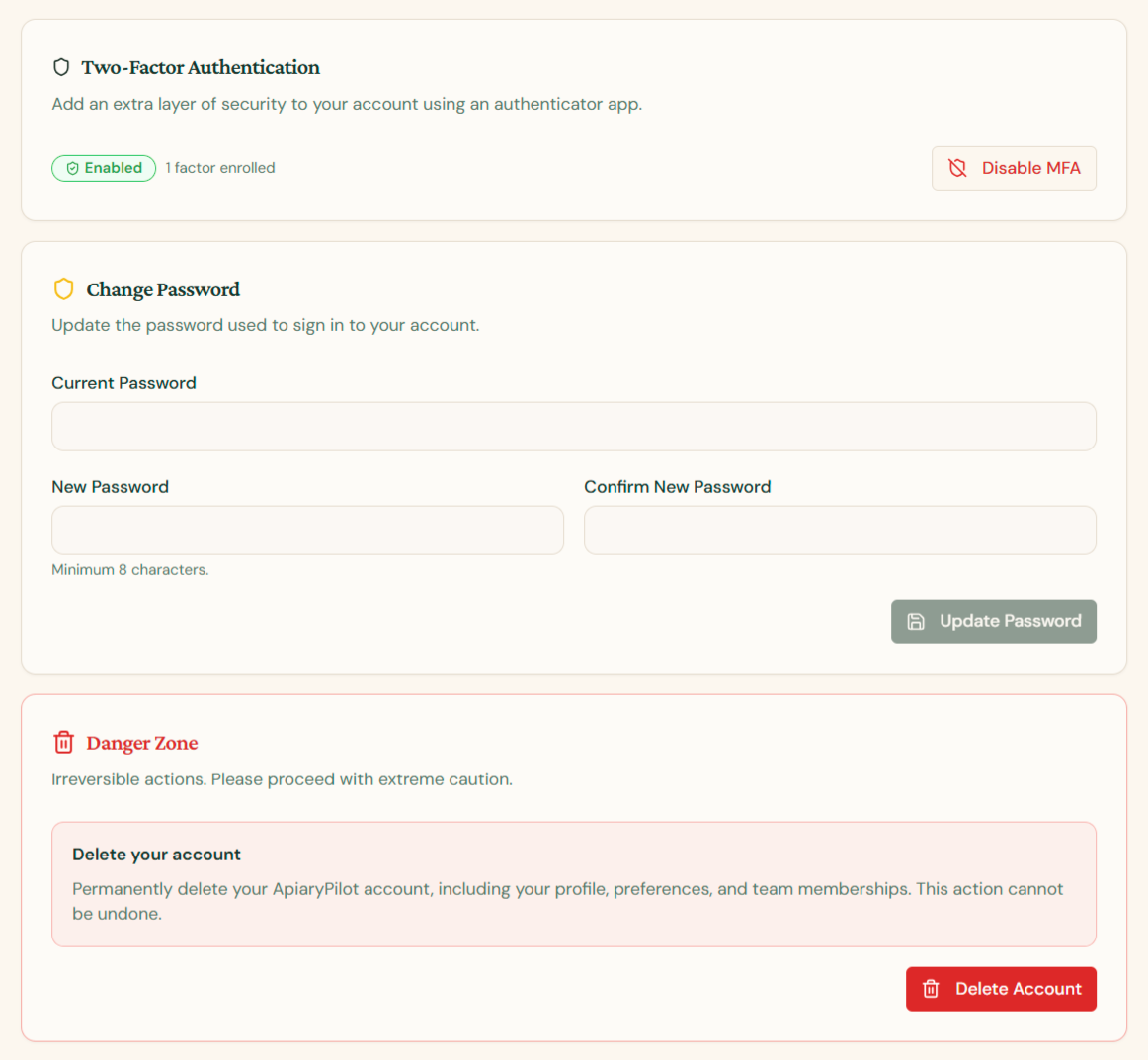
The Security tab in Settings is where you protect your ApiaryPilot account. It contains three sections: Two-Factor Authentication, Change Password, and a Danger Zone for permanent account deletion.
Two-Factor Authentication (MFA)
Multi-factor authentication is mandatory for every ApiaryPilot account. It adds a second layer of security on top of your password by requiring a 6-digit code from an authenticator app every time you sign in.
- Status badge — Shows whether MFA is currently Enabled and how many factors are enrolled
- Authenticator apps — Works with Google Authenticator, 1Password, Authy, Microsoft Authenticator, and any other TOTP-compatible app
- Disable MFA — Removes your enrolled factor. You'll be prompted to set up a new one immediately, since MFA cannot remain off
Important: If you lose access to your authenticator device, contact support at info@apiarypilot.com so we can help you recover access.
Change Password
Update the password used to sign in to your account at any time.
- Enter your Current Password to confirm it's really you
- Enter a New Password (minimum 8 characters)
- Re-enter it in Confirm New Password
- Click Update Password
For the best protection, use a long, unique password — ideally generated and stored by a password manager.
Danger Zone — Delete Your Account
The Danger Zone permanently deletes your account and all data tied to it. This action cannot be undone.
What gets deleted:
- Your profile, preferences, and avatar
- Your team membership in every organization you belong to
- Your authentication credentials (you'll be signed out immediately)
If you are the only member of your organization, the system will also permanently delete:
- The organization itself
- All apiaries, hives, inspections, harvests, treatments, mite counts
- All exports, invitations, and configurations
In that case, ApiaryPilot adds an extra safety step: you'll be asked to retype your organization's name exactly before the delete button becomes active.
Final confirmation
In every scenario you must type DELETE MY ACCOUNT in the confirmation dialog before the final destructive action is enabled. There is no recovery once you confirm — please be absolutely sure before proceeding.
Tip: If you only want to leave a shared organization without losing your account, ask an admin on the Team tab to remove you instead of deleting your account.