Jar Labels and Public Honey Batch Pages
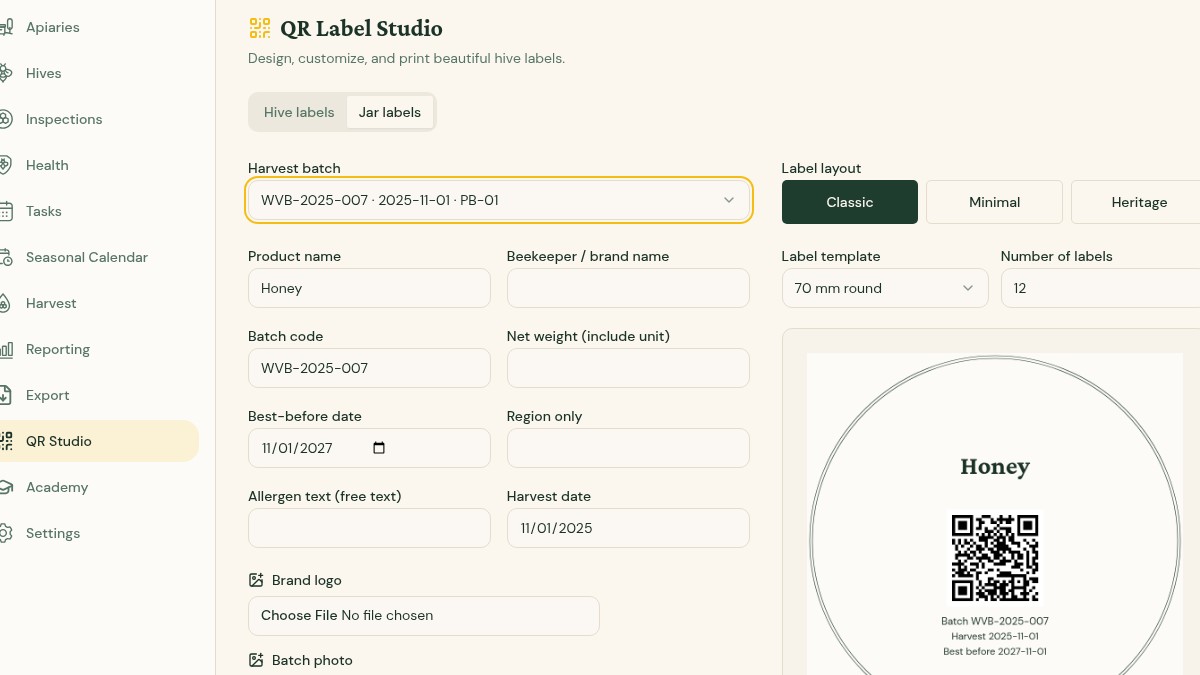
QR Label Studio's Jar labels mode uses one of your real harvest batches. It creates printable jar labels and an optional public batch page, so a customer can scan the jar and see the honey's origin and story.
Create a jar label
- Open QR Studio → Jar labels and select a harvest batch.
- Choose Classic, Minimal or Heritage, then a round (50 or 70 mm) or rectangular template.
- Complete the product and beekeeper/brand names, batch code, net weight, harvest date and region.
- Check the best-before date. It starts at harvest plus two years, but you can edit it.
- Add optional allergen-free wording and your logo. Set the number of labels and export the PDF.
Every layout keeps the logo at the top and the QR code centred below it. Preview the label at its final dimensions before printing.
Write the public batch story
Add a batch photo and a short story for customers. Floral source comes from the apiary's forage log, while harvest month and moisture result come from the linked harvest record. Only switch on Public page when the details are ready to share.
What a customer can see
The QR opens /b/{batch_code} with your beekeeper name and optional logo, harvest month, floral source, moisture result, photo and story. The map shows an approximate region rounded to about 5 km, never the exact apiary position. The footer links back to ApiaryPilot.
You can switch the public page off per batch at any time. QR Studio shows scan counts so you can see whether labels are being opened.
Watch out: Check your local food-labelling rules and the accuracy of weights, dates, allergen wording and origin claims before selling labelled honey. ApiaryPilot provides the layout and traceability tools, not legal approval.