Two-Factor Authentication (2FA)
ApiaryPilot requires two-factor authentication for all accounts to keep your data safe.
What is 2FA?
Two-factor authentication adds a second layer of security beyond your password. After entering your password, you'll need to provide a one-time code from an authenticator app.
Setting Up 2FA
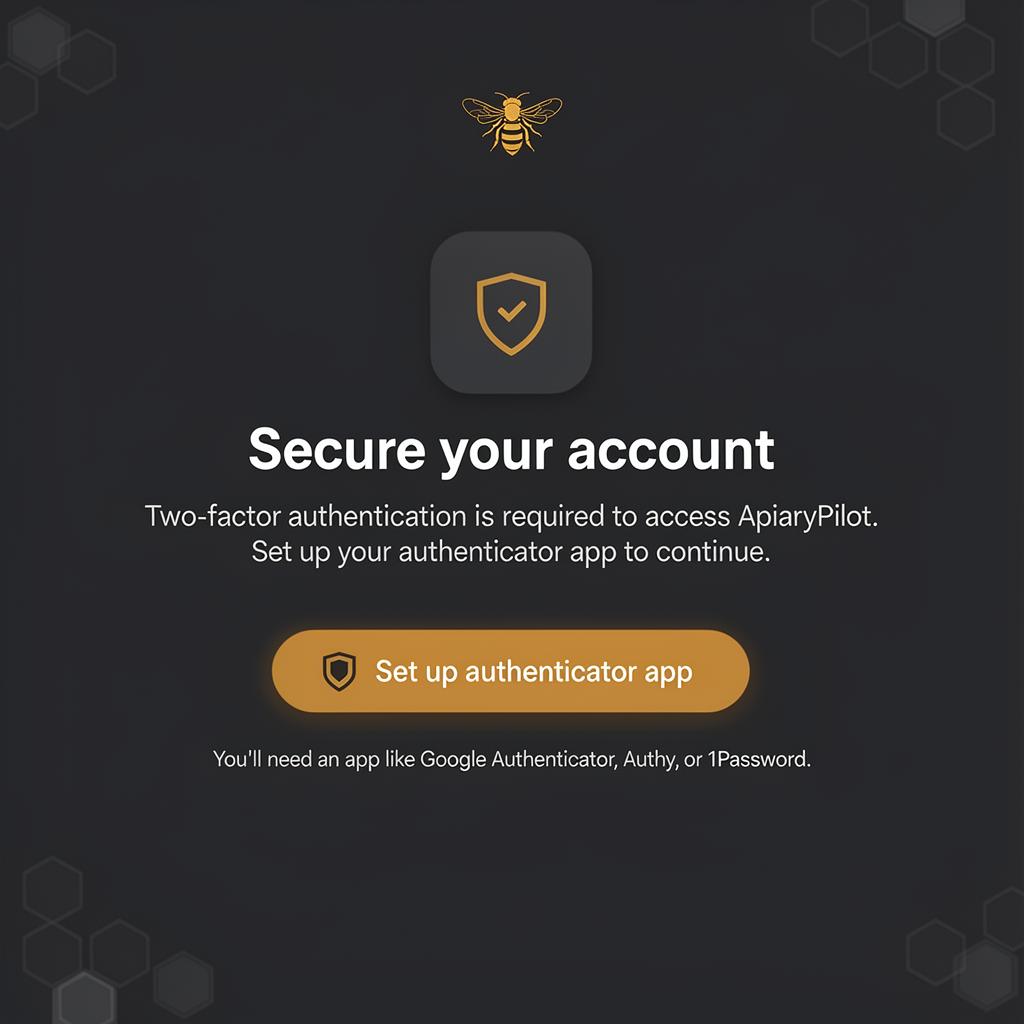
During onboarding you will be prompted to set up 2FA:
- Download an authenticator app — We recommend Google Authenticator, Authy, or Microsoft Authenticator
- Click "Set up authenticator app" to begin the enrollment process
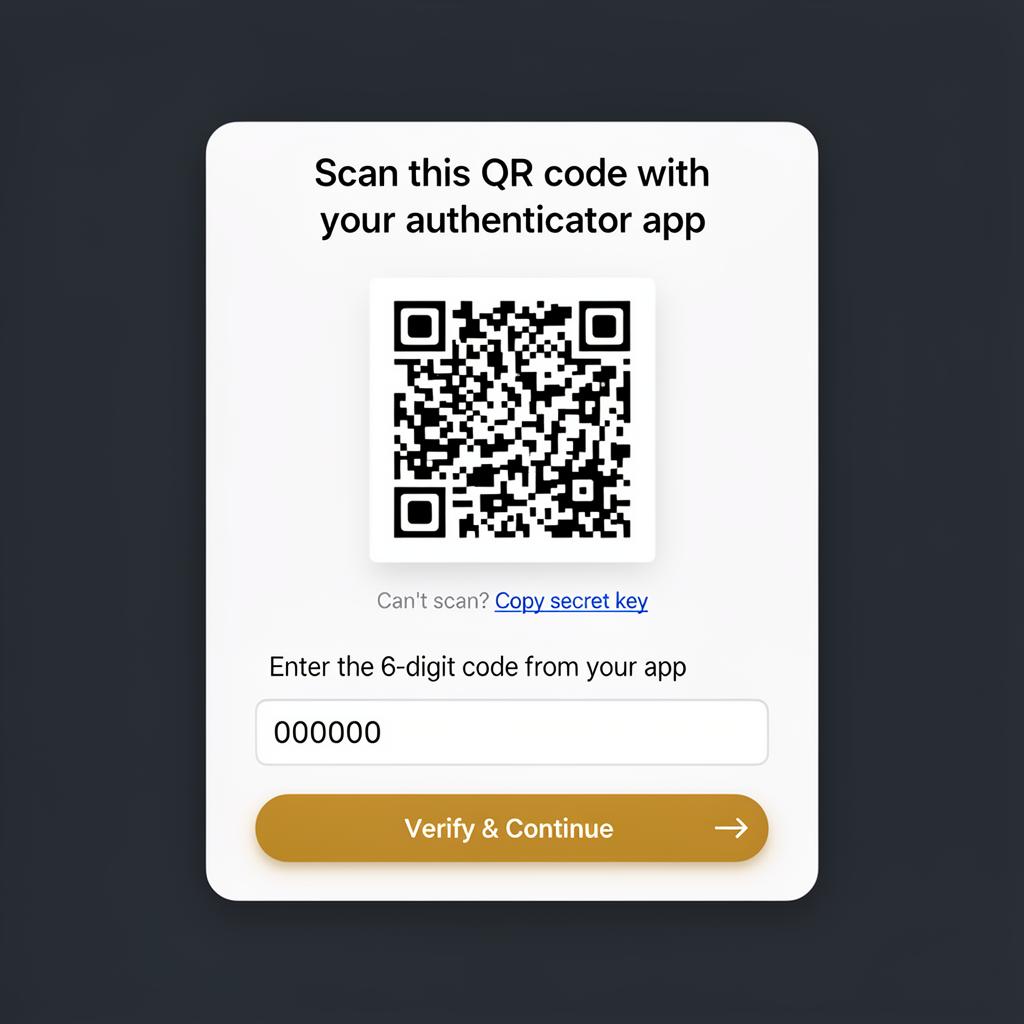
- Scan the QR code shown on screen with your authenticator app
- Enter the 6-digit code displayed in the app to verify setup
- Save your backup codes — Store these in a secure place in case you lose access to your authenticator app
Signing In with 2FA
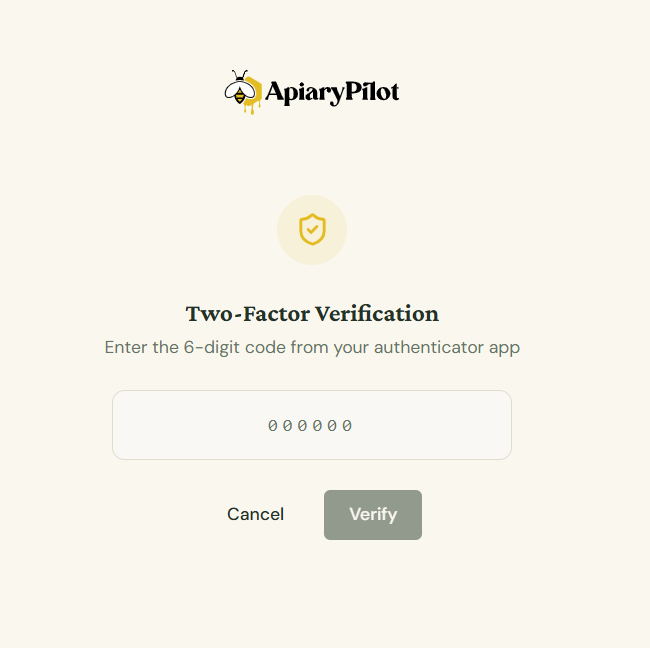
After entering your email and password, you'll see a second screen:
- Open your authenticator app
- Enter the current 6-digit code
- Click Verify to complete sign-in
Troubleshooting
| Issue | Solution |
|---|---|
| Code not working | Make sure the time on your phone is synced correctly |
| Lost authenticator | Use one of your saved backup codes to sign in, then reconfigure 2FA in Settings |
| New phone | Set up the authenticator app on your new device before wiping the old one |
Important: 2FA is mandatory and cannot be disabled. This protects your hive data and organization from unauthorized access.